In today’s fast-paced digital landscape, enterprise resource planning (ERP) systems aren’t just helpful—they’re essential. And when it comes to open-source ERP solutions & Services Provider, Odoo stands out as a powerful, modular, and highly customizable platform that adapts to businesses of all sizes.But deploying Odoo is only half the battle. Where you host it matters just as much. That’s why more and more organizations are turning to Amazon Web Services (AWS)—the world’s leading cloud platform—to power their Odoo instances. With AWS, you gain unmatched scalability, enterprise-grade security, and the flexibility to grow alongside your business—especially when paired with expert Odoo integration services that ensure seamless connectivity across your entire tech stack.As a Certified Odoo Partner, we specialize in seamless Odoo deployments on AWS. In this comprehensive guide, we’ll walk you through everything you need to know—from setting up your AWS environment to optimizing performance, security, and scalability for your Odoo ERP system.
1. What Is Odoo?
Odoo is an all-in-one business management suite that unifies critical operations like: – Sales & CRM, Accounting & Finance, Inventory & Procurement, Human Resources, Manufacturing, Project Management, E-commerce.
Built on a modular architecture, Odoo lets you pick and choose the apps you need—no bloat, no unnecessary complexity. Whether you opt for the free Community Edition or the feature-rich Enterprise Edition (with premium support and advanced tools), Odoo empowers businesses to automate workflows, reduce manual tasks, and make smarter, data-driven decisions.
And when you Connect Odoo on AWS, you unlock the full potential of cloud infrastructure—enabling remote access, real-time collaboration, and on-demand resource scaling.
2. Why Use AWS RDS for Odoo Database?
Not all cloud providers are created equal. AWS offers a unique combination of reliability, performance, and cost-efficiency that makes it the top choice for hosting Odoo. Here’s why:
2.1. Elastic Scalability
Your business doesn’t grow in a straight line—and your ERP shouldn’t be forced to either. With AWS, you can instantly scale compute power, storage, and memory based on real-time demand. Whether you’re handling seasonal sales spikes or onboarding new teams, AWS grows with you—without downtime.
2.2. Enterprise-Grade Reliability
AWS guarantees 99.99% uptime across its global infrastructure. With built-in redundancy, automatic failover, and multi-AZ (Availability Zone) deployments, your Odoo instance stays online—even during unexpected outages.
2.3. Cost Control & Predictability
Forget massive upfront hardware investments. AWS operates on a pay-as-you-go model, so you only pay for the resources you actually use. Plus, with tools like AWS Cost Explorer and Reserved Instances, you can optimize spending and forecast budgets with confidence.
3. Unlock Strategic Advantage with Cloud-Based ERP
Deploying Odoo on AWS isn’t just about technology—it’s a strategic business decision. Here’s how cloud-hosted ERP transforms modern operations:
3.1. Anywhere, Anytime Access
Your team can securely access Odoo from any device, anywhere in the world. This supports remote work, field operations, and global collaboration—without compromising data integrity.
3.2. Always Up-to-Date
AWS integrates seamlessly with Odoo’s update cycles. Security patches, performance enhancements, and new features roll out automatically, reducing the burden on your IT team and keeping your system future-ready.
3.3. Unified, Actionable Data
All your business data lives in a centralized, secure cloud environment. This eliminates data silos, improves reporting accuracy, and empowers leadership with real-time insights for faster, smarter decisions.
4. Deploying Odoo with Amazon RDS on AWS
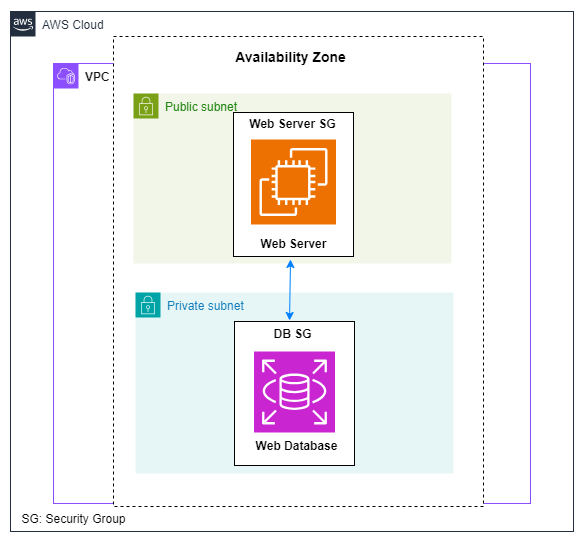
- We’ll walk through the step-by-step process of deploying an Odoo with RDS on AWS. We’ll start by setting up the networking infrastructure, including creating a Virtual Private Cloud (VPC), subnets, internet gateway, and security groups. Then, we’ll launch an EC2 instance for the web server and install Odoo as the application.
- Next, we’ll create an RDS instance for the database server and establish a connection between the web server and the database server using security group chaining. We’ll configure the Odoo application to connect to the database server (Postgres) and test the application’s functionality. Remember that it is in a single availability zone.
4.1. Step-by-Step: Deploy Odoo on EC2 with RDS PostgreSQL
4.1.1 Create a Secure Virtual Private Cloud (VPC) for Odoo and RDS.
1. In the AWS Management Console, use the search bar to find VPC and select it.
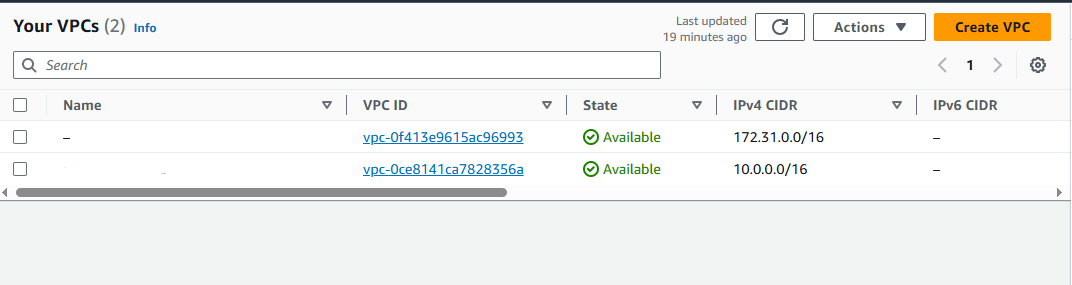
2. Create a new VPC by Clicking on the “Create VPC button” as below in the image below:
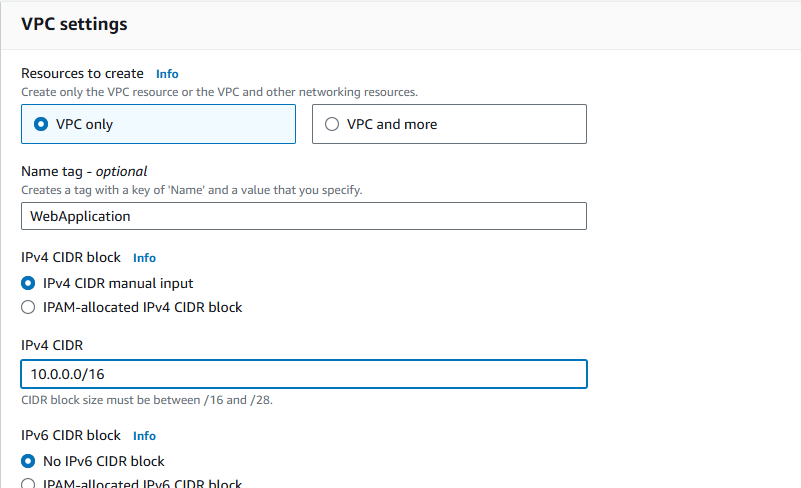
3. Fill in the required fields to create your VPC. Leave any pre-populated or optional fields blank.
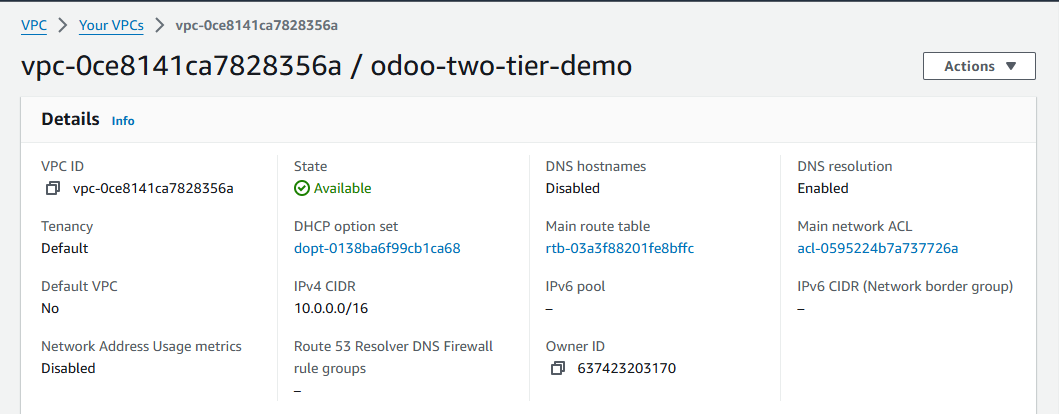
4. Once you’ve entered the necessary details, click Create VPC.
4.1.2 Setting up Subnets
1. In the VPC Dashboard, navigate to Subnets in the left sidebar and click Create subnet.
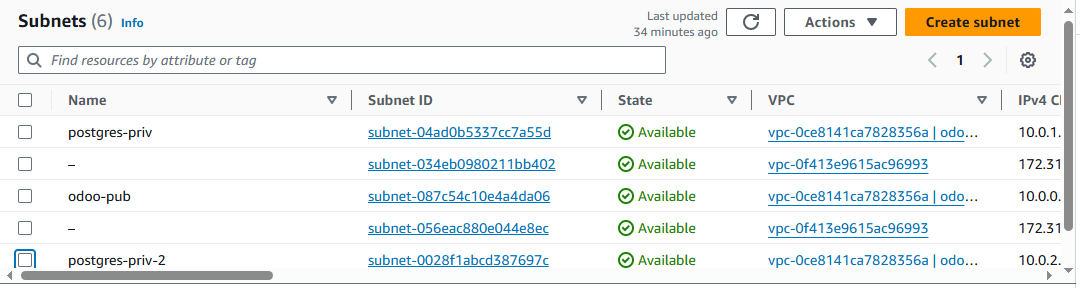
2. Select the VPC ID you created earlier.
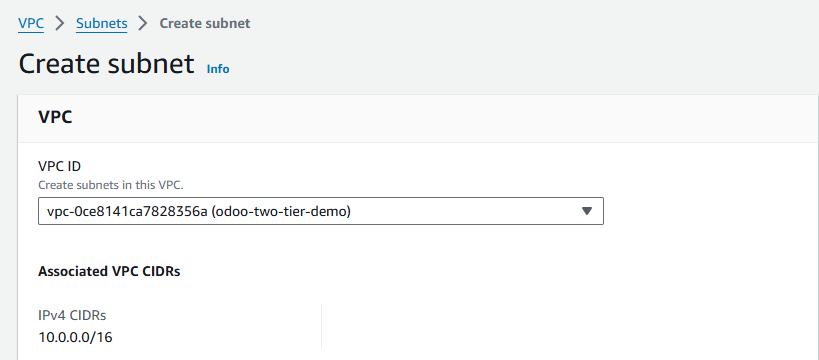
3. Provide a name for the subnet & Assign an appropriate CIDR block for the public subnet (e.g., `10.0.1.0/24`). Similarly, click on “Create subnet” again within the VPC Dashboard.
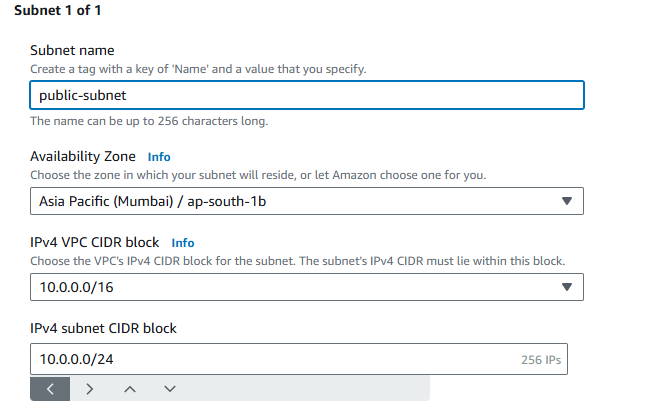
4. Click Create subnet again to add a private subnet for your database server, using a different CIDR block (e.g., `10.0.2.0/24`).
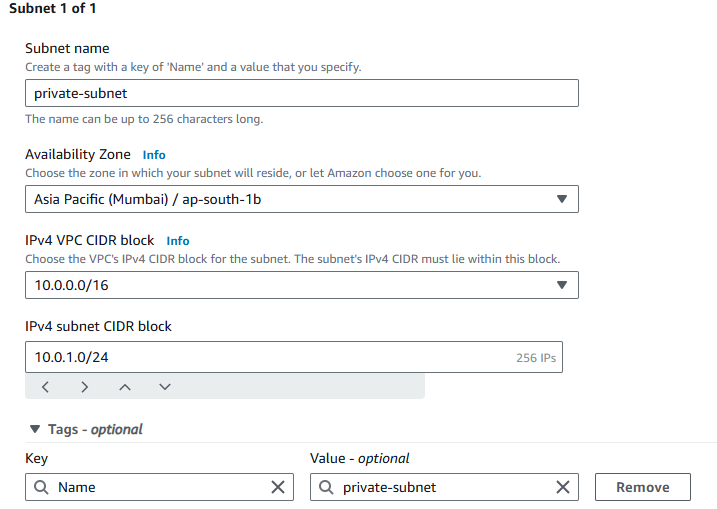
5. Create another Private subnet for database server and assign CIDR block with 10.0.2.0/24
💡 Note: AWS recommends at least two private subnets in different Availability Zones for high availability with RDS.
4.1.3 Set Up Internet Gateway (IGW)
1. In the VPC Dashboard, go to Internet Gateways in the left sidebar.

2. Click Create internet gateway, provide a descriptive name (e.g., `odoo-ig`as shown in image below) and click “Create Internet Gateway”.
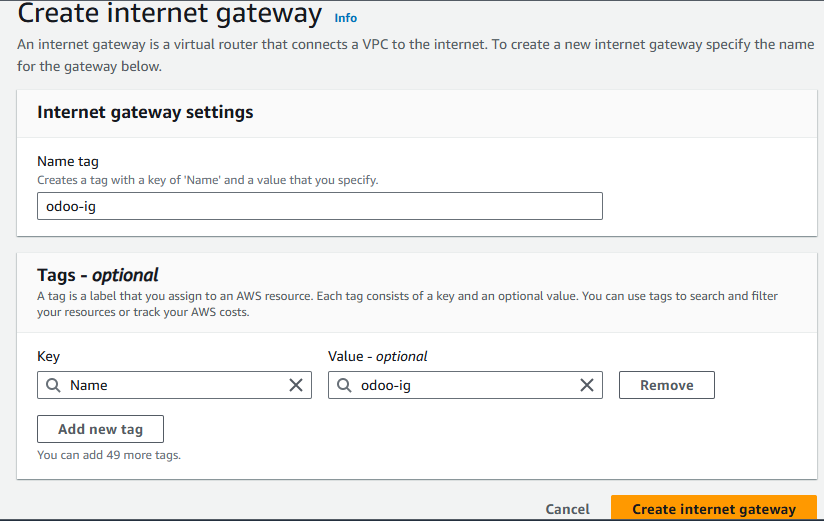
3. After creation, select the IGW and click Actions > Attach to VPC.
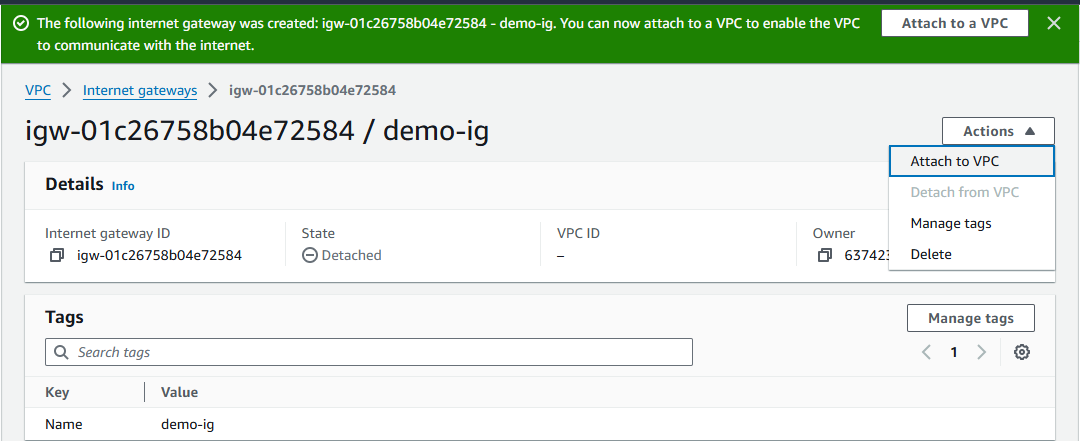
4. Choose your VPC from the list and confirm the attachment.
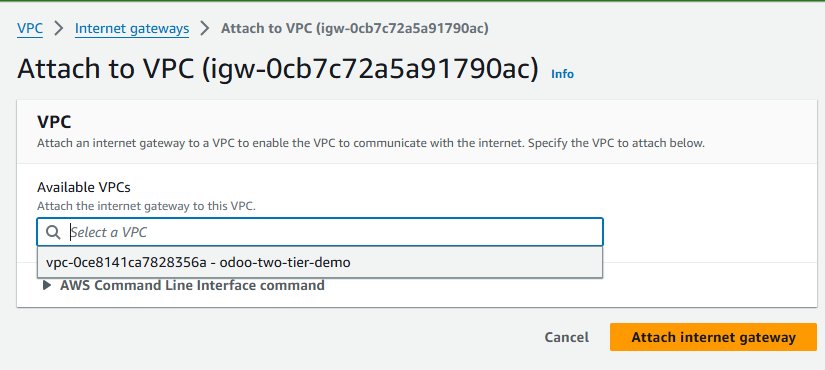
4.1.4 Updating Route tables for Subnets
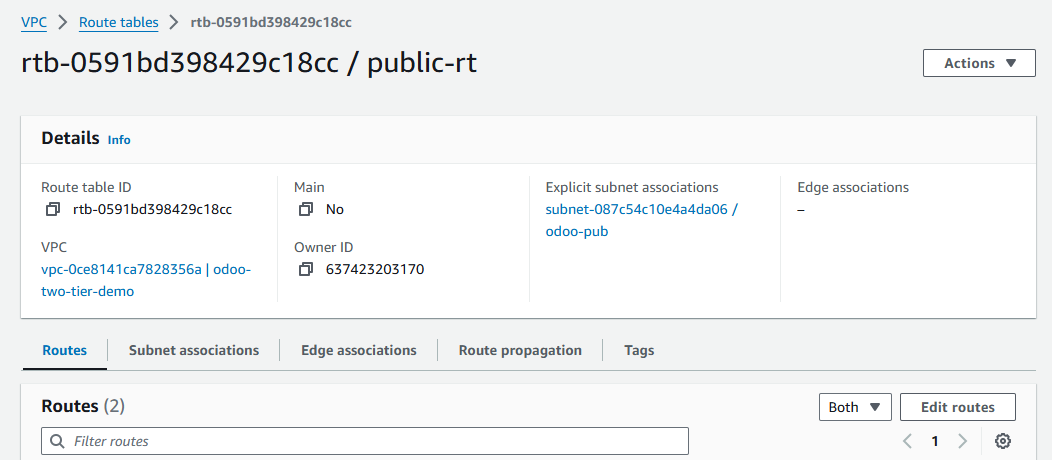
1. In the VPC Dashboard, go to Route Tables and click Create route table Button.
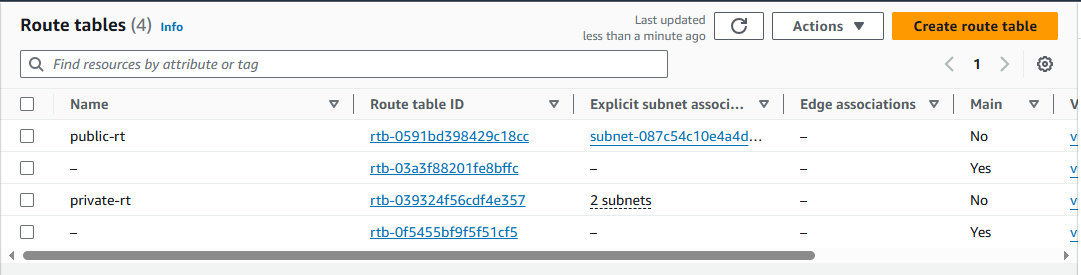
2. Now click on Create route table and Name it (e.g., `public-route-table`) and associate it with your VPC. Fill in the required details for the public route table.
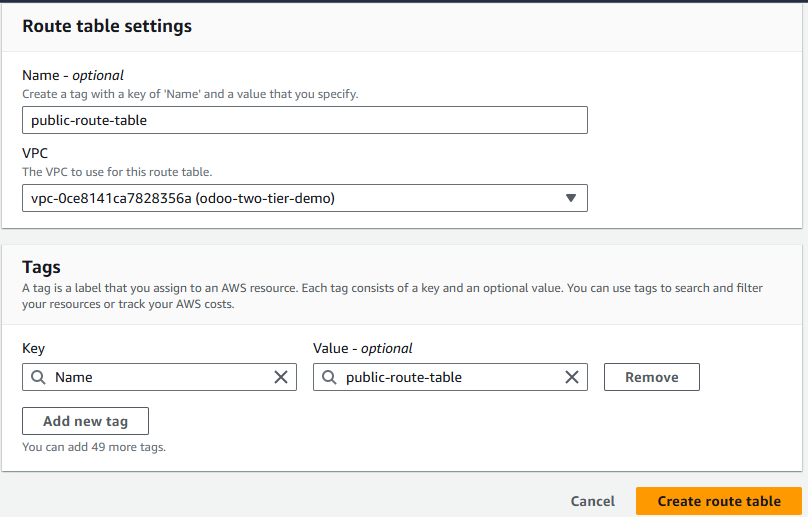
3. Select the new route table, then click Routes > Edit routes.
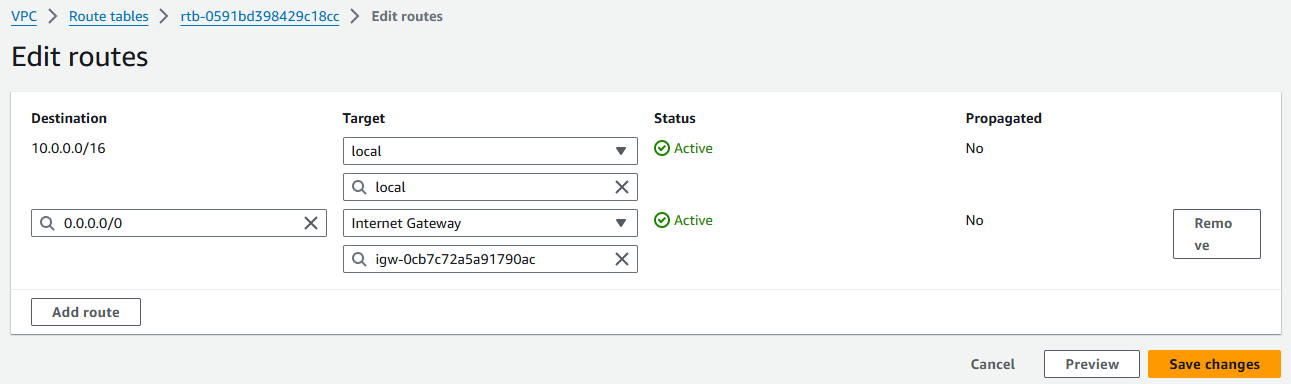
4. Add a route:
Destination: `0.0.0.0/0`
Target: Your Internet Gateway (IGW)
5. Go to Subnet Associations > Edit subnet associations, and associate your public subnet with this route table.

Launch an Odoo EC2 Instance (Without PostgreSQL)
1. Launch an EC2 instance based on your application requirements.
2. During setup:
Select your existing VPC.
Choose the public subnet.
Enable Auto-assign public IP to ensure internet accessibility.
Create or select a security group (e.g., `odoo-sg`) with appropriate inbound rules (e.g., HTTP/HTTPS, SSH).
3. Do not install PostgreSQL on this instance—Odoo will connect to a separate RDS database.
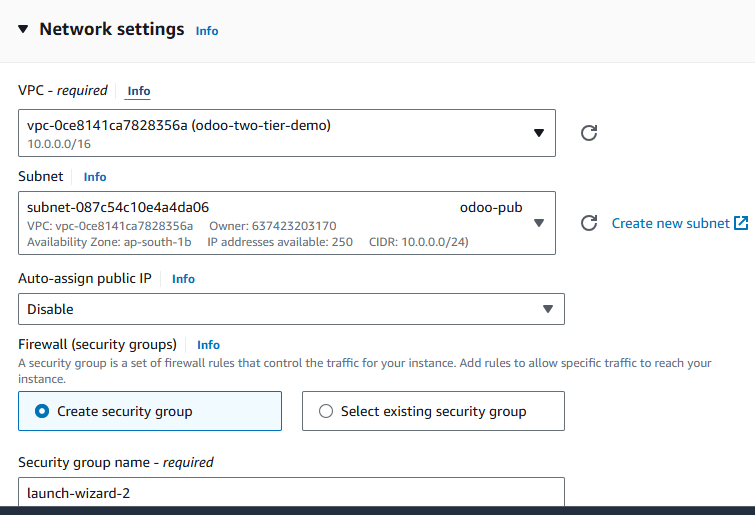
- Setup the Odoo on a newly created EC2 instance without Postgres database.
4.2. Set Up an RDS PostgreSQL Database in Private Subnets
4.2.1 Create a Database for a Subnet Group
1. In the RDS Dashboard, before creating the Database, We need to create a subnet group which is important. Click on Create DB subnet group.
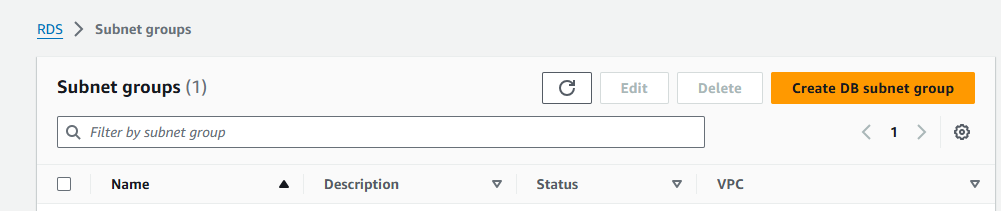
2. Provide a name and description.
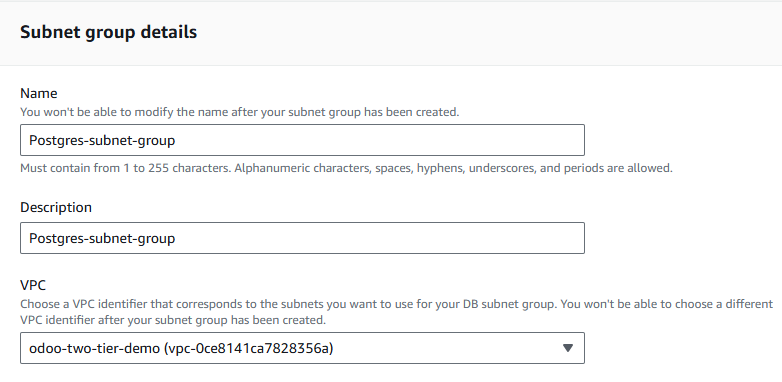
3. Select your VPC and choose at least two private subnets (from different Availability Zones).
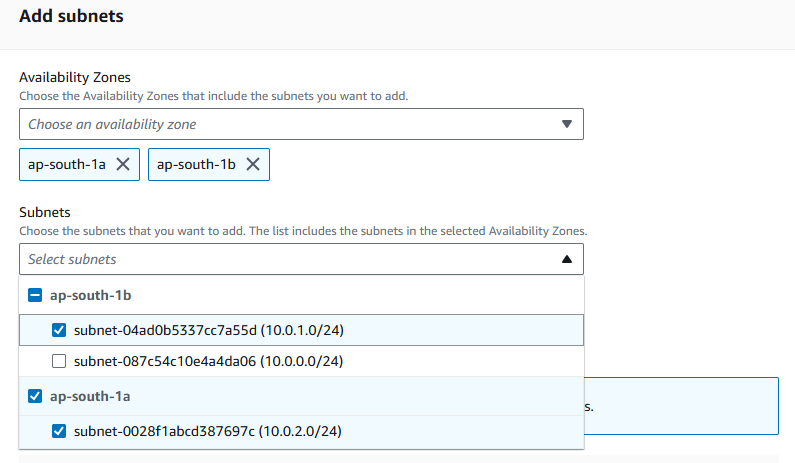
4. Now you can view the created subnet.
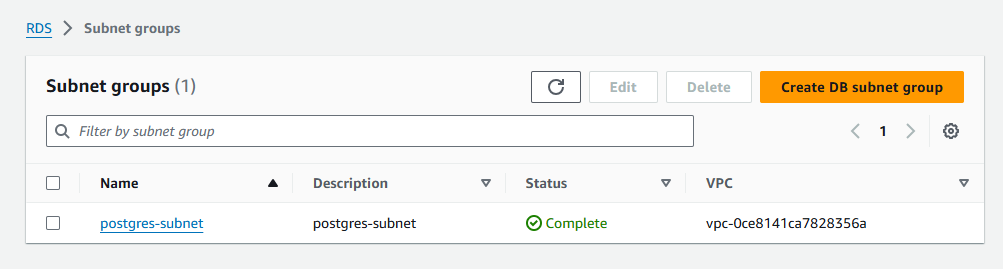
5. Navigate the RDS console and click on “Create Database”.
6. Under the engine option, Select the appropriate “PostgreSQL”.
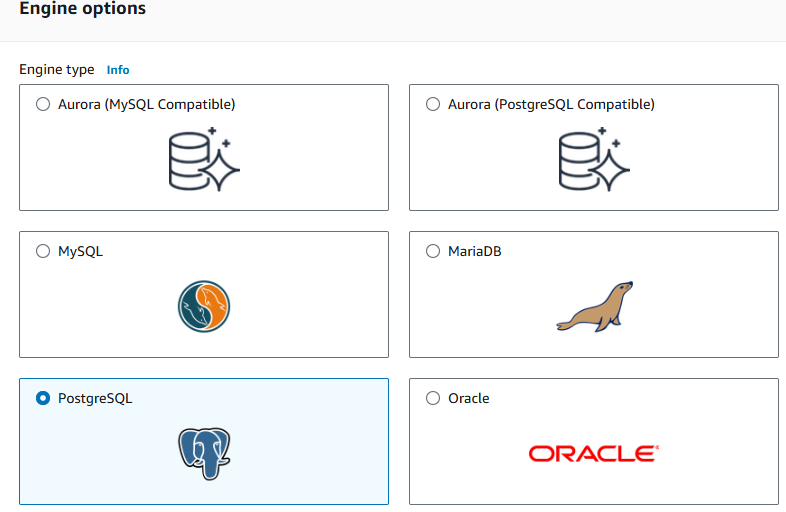
Note: Choose a version compatible with your Odoo version (e.g., PostgreSQL 14).
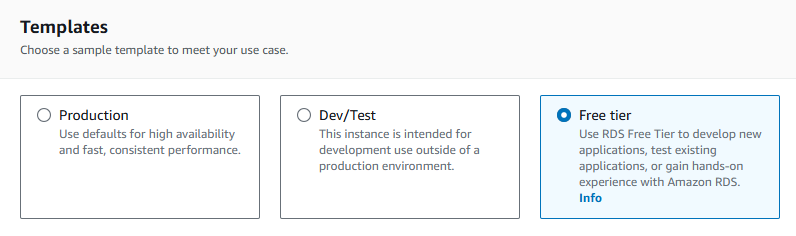
7. Templates: Select Free tier (for testing) or Production (for live use).
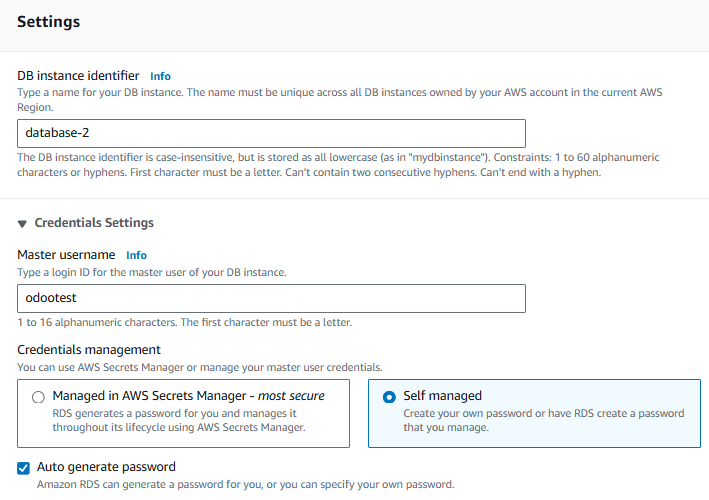
8. Under the settings section fill the details as per below screenshot.
DB instance identifier (e.g., `database-2`)
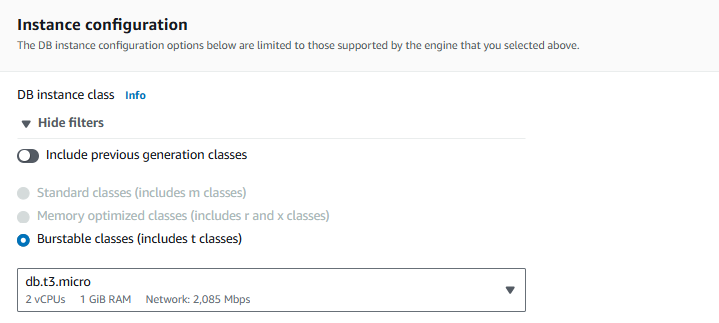
9. Under instance configuration select the instance as per your needs or leave as default.
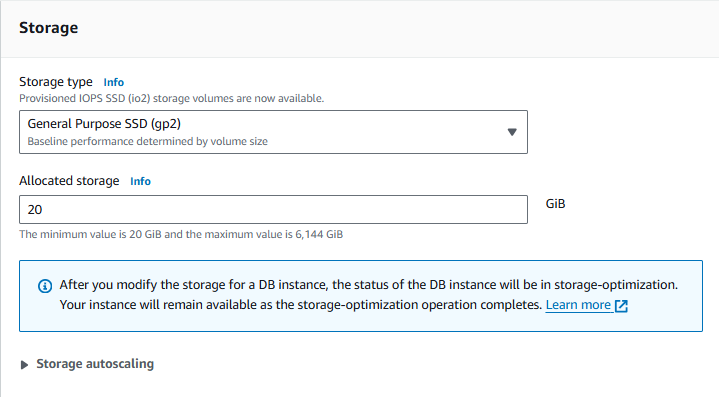
10. Under the storage section, Accept defaults or adjust as needed.
11. In the connectivity section, choose the existing.
VPC: Select your existing VPC
Subnet group: Choose the one you just created
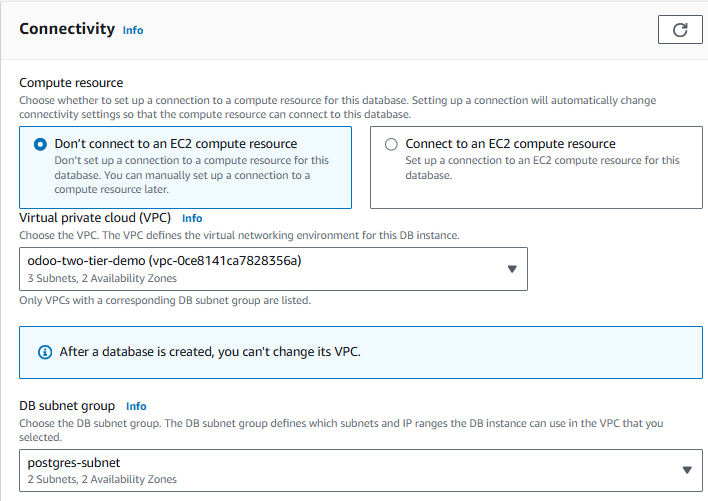
Under “VPC security group”, create a new and give appropriate name for the security group.
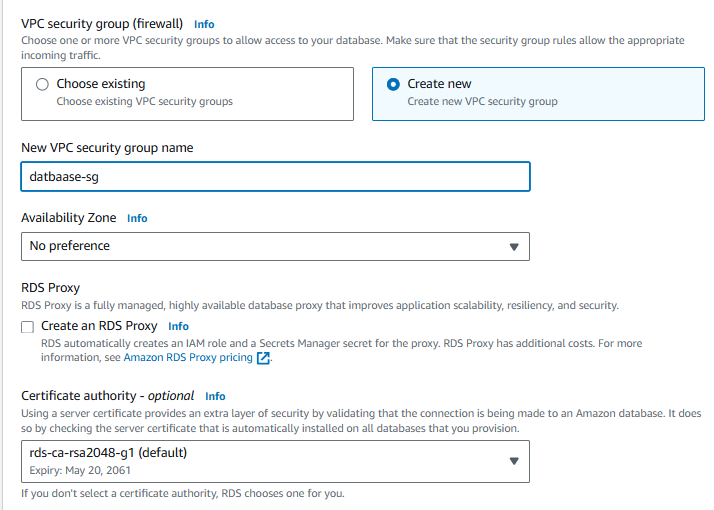
- WARNING: Configure security group rules carefully—this controls who can access your database.
- Note: The security group configuration controls the inbound and outbound traffic for your RDS instance.
12. Configure Monitoring, Backup, and Maintenance settings as needed.
13. In Additional configuration, specify your initial database name.
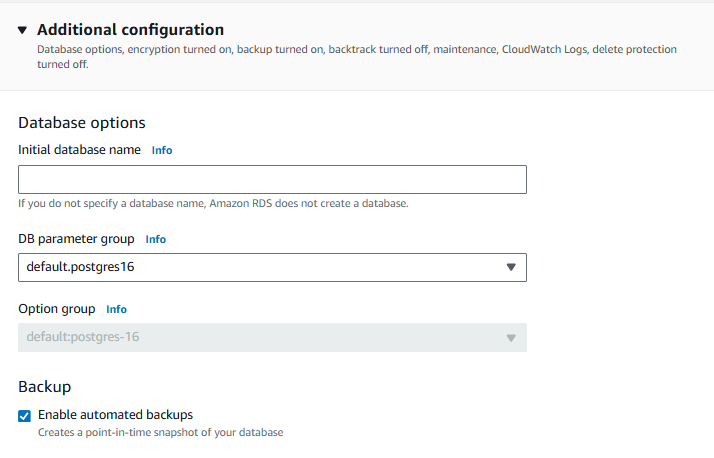
14. Please store the username and password at a safe place after successfully created.
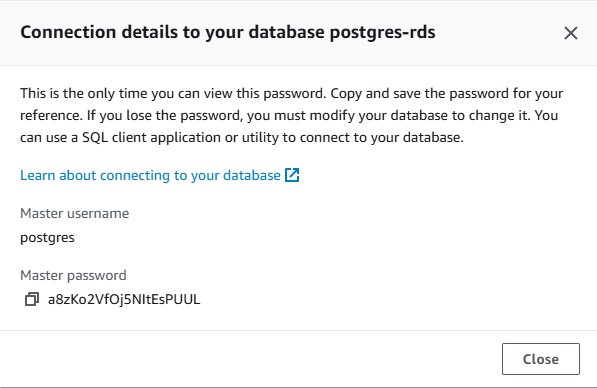
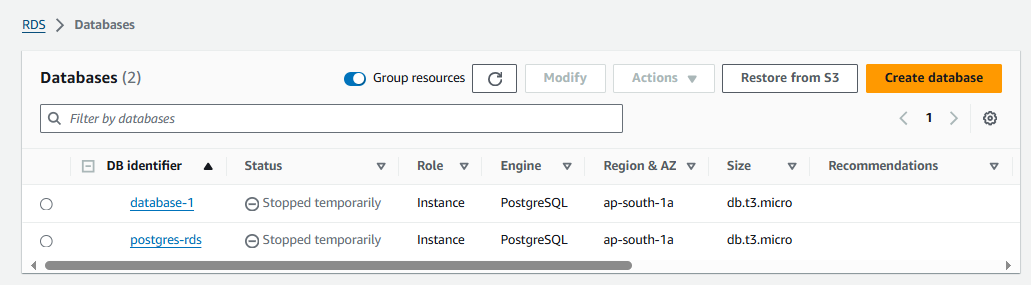
15. Successful creation of the database instance, visible on the RDS dashboard.
4.2.2 Configure Security Groups to Link EC2 and RDS
1. Go to the EC2 Dashboard > Security Groups.
2. Select the security group created for your RDS instance.
3. Click Edit inbound rules.
4. Add a rule to allow PostgreSQL traffic (port 5432) only from your Odoo EC2 security group:
Type: PostgreSQL
Source: Select the security group used by your Odoo instance..
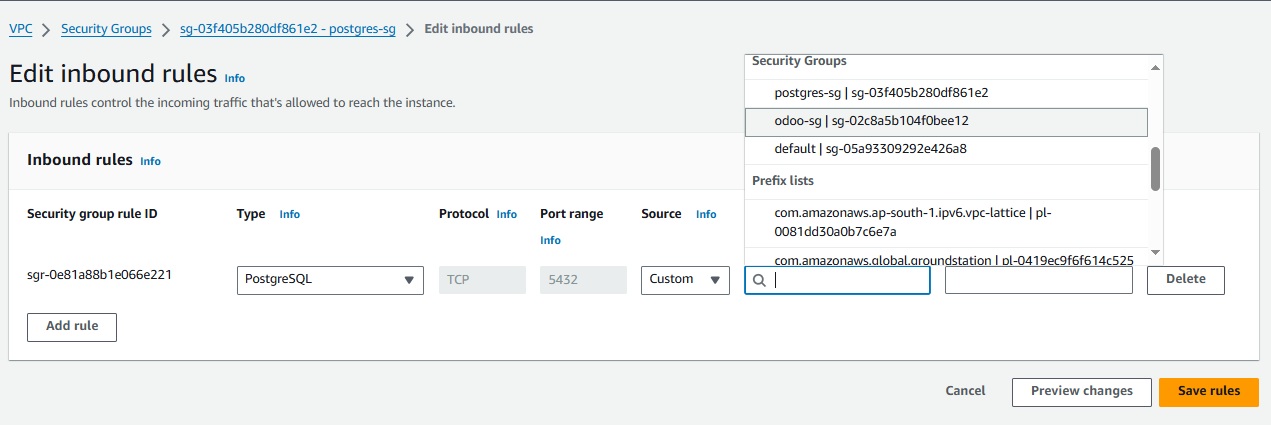
- We allowed Postgres traffic from the “odoo-sg” group to permit an Odoo instance to communicate with the database.
How to Connect Odoo to Your AWS RDS PostgreSQL Database
Edit the configuration file and find the database connection settings. You’ll need to specify:
- db_name: The name of the Odoo database you created in RDS Postgres.
- db_user: The username for the Odoo database user in RDS Postgres.** (Create this user with appropriate permissions in RDS)
- db_password: The password for the Odoo database user in RDS Postgres.
- db_host: The endpoint address of your RDS Postgres instance. This can be found in the RDS Management Console under “Connectivity & security” -> “Endpoint”. (Don’t use “localhost” here)
- db_port: The port number of your RDS Postgres instance (default is usually 5432).
Here’s the psql command to check if the database exists on your AWS RDS instance:
psql -h
→ Install postgresql client to access database using psql.
Troubleshooting Common Odoo–RDS Connection Issues
→ Error: The psycopg2 error during requirements.txt installation is related to how Odoo interacts with your PostgreSQL database.
Solution: pip install psycopg2-binary
→ Error: Database “odoo_test” not initialised, you can force it with `-i base`…
Solution: sudo -u odoo /opt/odoo/odoo/odoo-bin -i base -d db_name –db_host rds_endpoint -r username -w password –stop-after-init
Frequently Asked Questions: Odoo on AWS with RDS PostgreSQL
1. How do I connect Odoo to AWS RDS PostgreSQL?
Deploy Odoo on an EC2 instance and configure it to use an RDS PostgreSQL database by updating the `odoo.conf` file with your RDS endpoint, credentials, and port (`5432`).
2. Should I install PostgreSQL on my Odoo EC2 instance when using RDS?
No. When using Amazon RDS for your database, PostgreSQL should run exclusively on RDS. Your EC2 instance should host only the Odoo application.
3. What VPC setup is recommended for Odoo with RDS on AWS?
Use a VPC with public subnets for the Odoo EC2 instance and private subnets (in at least two Availability Zones) for the RDS PostgreSQL database to ensure security, isolation, and high availability.
4. How do I secure communication between Odoo EC2 and RDS?
Configure security groups so the RDS instance accepts inbound PostgreSQL traffic (port `5432`) only from the security group assigned to your Odoo EC2 instance—never from `0.0.0.0/0`.
5. Which PostgreSQL version works with Odoo on AWS RDS?
Use a PostgreSQL version compatible with your Odoo release (e.g., PostgreSQL 12–15). Always consult Odoo’s official documentation for supported versions before creating your RDS instance.
6. Can I host both Odoo Community and Enterprise editions on AWS with RDS?
Yes. Both Odoo Community and Enterprise editions can connect to AWS RDS PostgreSQL. The setup process is identical; only licensing and feature access differ.
7. Do I need a DB subnet group for RDS when deploying Odoo?
Yes. AWS RDS requires a DB subnet group containing at least two private subnets in different Availability Zones—even for single-AZ deployments during testing—to support future scalability and high availability.
8. How do I test if Odoo is connected to RDS successfully?
After updating `odoo.conf`, restart the Odoo service and access the web interface. If the database selection screen appears or your custom database loads without errors, the connection is successful.
Ready to Deploy Odoo on AWS?
Whether you’re migrating from an on-premise system or launching Odoo for the first time, AWS provides the foundation for a high-performance, secure, and scalable ERP deployment.
At Codesphere Tech, we’ve helped dozens of businesses deploy, optimize, and manage Odoo on AWS—with minimal downtime and maximum ROI. From architecture design to ongoing maintenance, we ensure your ERP runs like clockwork.
Choose the Right Odoo Edition for Your Business
Discover the flexibility of Odoo Community or the advanced power of Odoo Enterprise — both fully supported on AWS with RDS PostgreSQL.
Stay tuned for our next post, where we’ll dive into the step-by-step technical guide for deploying Odoo on AWS—including EC2, RDS, security groups, load balancing, and backup strategies.
Your ERP shouldn’t hold you back — it should propel you forward.
With Odoo on AWS, the future of your business is not just manageable… it’s unstoppable.
Contact Codesphere Tech today — we’re your trusted partner for cloud-powered ERP success.