Most Odoo users don’t realize how much time they lose on a single friction point: adjusting product quantities. By default, Odoo forces cashiers to either:
– Type numbers manually (error-prone under pressure),
– Or open a full numpad that covers half the order screen, forcing them to scroll or guess what’s hidden.
That’s why I helped develop and now recommend the cst_pos_orderline_qty_numpad module—a lightweight, open-licensed solution that adds intuitive + / – buttons directly on each order line. No more hidden menus. No more typos. Just one-click quantity control.
In busy retail environments, every second counts. Adjusting product quantities in Odoo POS using the default method, typing numbers, or navigating through extra steps, can slow down operations.
The Odoo POS Order line Quantity Numpad module solves this problem by allowing cashiers to increase or decrease product quantities directly from the order line, making checkout faster and easier.
Key Features Odoo POS Numpad
1. Quick Quantity Adjustment
Easily increase or decrease product quantity directly from the order line using “+” or “–” buttons; no need to open the numpad or navigate through extra menus.
2. Auto-Delete When Quantity Reaches Zero
When the quantity of a product becomes zero, the “–” button automatically changes to a delete icon, allowing instant removal of the product from the order line.
3. Toggle Numpad Display
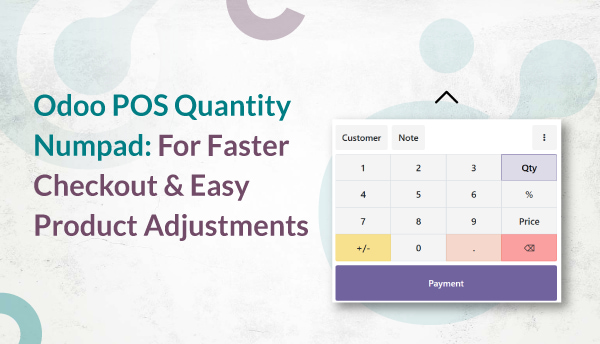
When multiple products are added to the cart, the numpad often hides part of the order line. This module adds a numpad show/hide toggle button, so cashiers can manage visibility easily for a better user experience.
4. Shop-Wise Configuration
Each POS shop can have different feature settings. Admins can enable or disable specific features (like numpad toggle or auto-delete) per shop, providing full flexibility.
5. Faster Checkout & Better Usability
By reducing the number of clicks and screen transitions, cashiers can serve customers faster, making the checkout experience smoother and more efficient.
How Odoo POS Numpad Works
1. Install the module from the Odoo App Store.
2. Open your POS session.
3. Add a product to the order line.
4. Use the “+” and “–” buttons to adjust quantity directly.
5. When quantity hits zero, the item automatically disappears from the order line.
6. Use the up/down toggle button to hide or show the numpad anytime.
This simple yet powerful workflow saves time and minimises mistakes.
Real-World Flexibility: Configured for Business
Unlike generic add-ons, this module respects real-world complexity:
– 1.Auto-delete at zero:
The “–” button becomes a trash icon when quantity hits zero—no accidental zeros left in orders.
– 2.Numpad toggle:
A small up/down arrow lets users hide the numpad when it blocks the order—critical for small tablets.
– 3.Per-shop settings:
Enable auto-delete in your café but disable it in your warehouse pickup counter. Full control, zero code.
Benefits & Use Cases of Odoo POS Numpad
✅ Time-saving – No need to open extra panels or enter manual quantities.
✅ Improved user experience – Clean, intuitive interface for quick sales.
✅ Error reduction – Reduces mistakes caused by manual input.
✅ Flexible configuration – Customise behaviour per POS shop.
✅ Ideal for – Supermarkets, cafés, restaurants, and any business with high sales volume.
Installation & Technical Info of Odoo POS Numpad
- Module name: cst_pos_orderline_qty_numpad
- Supported versions: Odoo 19.0
- Dependencies: point_of_sale, stock, account, mail
- License: OPL-1
- Support: 30 days of free support by Codesphere Tech
- App link: Download App from Odoo Apps Store
Conclusion
You Can now explore more Odoo POS Orderline Quantity Numpad module is a simple yet powerful enhancement for POS users. It reduces steps, saves time, and delivers a cleaner interface, making your checkout process faster and smoother.
✅ Ready to Eliminate Checkout Friction?
Want a custom demo or help integrating it with your existing POS workflow?
👉Just an actionable advice, Try it today and make quantity management in your Odoo POS effortless.
Book a Optimization Call for the Odoo POS modules and custom solutions with your Trusted & Certified Expert Odoo Partner.
Frequently Asked Questions for Odoo POS Quantity Numpad
What Odoo versions support the quantity numpad module?
The module supports Odoo 16.0 through 19.0, including both Community and Enterprise editions. It requires core dependencies: `point_of_sale`, `stock`, `account`, and `mail`.
Does this work offline in Odoo POS?
Yes. The +/– buttons function fully in offline mode. All quantity changes sync automatically when connectivity resumes.
Can I disable the auto-delete feature?
Absolutely. Admins can toggle auto-delete on or off per POS configuration—ideal for businesses that need to keep zero-quantity lines for auditing.
Is this module compatible with custom POS interfaces?
Yes. The module uses Odoo’s standard POS widget system, so it works with most custom themes and third-party POS modifications.
How do I hide the numpad to see more order lines?
A small toggle button (▲/▼) appears near the numpad. Click it to collapse or expand the input panel—no settings needed.
How do I add quantity buttons in Odoo POS?
Install the `cst_pos_orderline_qty_numpad` module from the Odoo App Store. Buttons appear automatically on all order lines.
Why is my Odoo POS slow when adjusting quantities?
The default numpad covers the order screen and requires extra taps. The quantity numpad module eliminates this bottleneck.
Can cashiers change quantities without opening a popup?
Yes—with this module, +/– buttons appear directly on the order line for instant adjustment.
Is the Odoo POS quantity numpad module free?
Yes. It’s available under the OPL-1 license with 30 days of free support from Codesphere Tech.